
Hardware Matcher
Run Gemma 4 Locally
Auto-detects your GPU — get the right model and command for your hardware
Gemma 4 Minimum Hardware Requirements
Quick reference for every Gemma 4 model tier and popular hardware configuration.
By Model Tier
| Model | Params | Min RAM | Min VRAM | Recommended GPU | Speed |
|---|---|---|---|---|---|
| E2B | 5B Dense | 4 GB | 4 GB (Q4) | Any modern phone or PC | 15–30 t/s (phone), 40+ t/s (desktop) |
| E4B | 9B Dense | 8 GB | 6 GB (Q4) | RTX 3060+, M1+ | 20–35 t/s |
| 26B-A4B MoE | 27B / 4B active | 16 GB | 12 GB (Q2), 16 GB (Q4) | RTX 4070 Ti, M-series 16 GB+ | 10–25 t/s (MoE advantage) |
| 31B Dense | 31B | 32 GB | 20 GB (Q4), 24 GB (Q2) | RTX 4090, M-series 32 GB+ | 8–20 t/s |
By Popular Hardware
| Hardware | Runs Best | Quant | Expected Speed |
|---|---|---|---|
| RTX 4060 8 GB | E4B | Q4_K_M | 20–35 t/s |
| RTX 4070 Ti 16 GB | 26B MoE | Q4_K_M | 25–40 t/s |
| RTX 4090 24 GB | 31B Dense | Q4_K_M | 15–25 t/s |
| MacBook M1/M2/M3/M4 8 GB | E4B | Q4_K_M | 10–20 t/s |
| MacBook Pro M-series 16 GB | 26B MoE | Q3/Q4 | 10–22 t/s |
| MacBook Pro M-series 32 GB+ | 31B Dense | Q4_K_M | 10–18 t/s |
| iPhone 15 Pro | E2B | Built-in | 10–20 t/s |
| Android flagship 8 GB | E2B | Built-in | 8–15 t/s |
Check Your Hardware Automatically
No installs, no sign-ups. Open the page and get a personalized setup in seconds.
How Auto-Detection Works
Auto-detect your GPU
The moment you load this page, the tool reads your GPU via browser-native WebGPU and WebGL APIs. On Mac, it identifies your exact Apple Silicon chip and unified memory size. On PC, it reads your NVIDIA / AMD model and VRAM. No data leaves your browser.
Match to the best model
Your detected GPU, VRAM (or unified memory), and OS are cross-referenced against Gemma 4's model tiers — Edge for phones, 26B MoE for consumer hardware, 31B Dense for workstations. The matcher picks the largest model your hardware can run comfortably and flags any known caveats.
Copy your run command
You get a ready-to-paste terminal command for Ollama, llama.cpp, or Transformers — with the right model tag, context flags, and performance tweaks pre-filled. On mobile, the tool links directly to Google AI Edge Gallery for one-tap install.
Everything runs in your browser. The GPU detection uses the same APIs that games and 3D apps use to render graphics. No data sent to any server, no cookies, no analytics, no user tracking. You can even use the tool offline after the page loads.
Manual Mode
Click "Wrong? Edit manually" in the tool above to set OS, RAM, and VRAM by hand. Useful when auto-detection doesn't match your actual setup.
- → Dual-GPU laptop — the browser often reports the weaker integrated GPU instead of your discrete NVIDIA/AMD card.
- → New GPU not in our database — very recent models may show as "Unknown GPU". Manual mode lets you enter specs directly.
- → Planning a purchase — try different RAM/VRAM combos to see which upgrade unlocks a bigger model tier.
Common Gemma 4 Local Setups
| Hardware | Recommended Setup | Best For | Notes | |
|---|---|---|---|---|
| MacBook Pro 16 GB | 26B-A4B MoE via Ollama (GGUF) | General chat | Keep context under 8k; avoid MLX (known bugs) | Try it → |
| RTX 4060 8 GB | E4B via Ollama / LM Studio | Chat, lightweight local use | 26B MoE needs 12 GB+ VRAM | Try it ↑ |
| RTX 4070 Ti 16 GB | 26B-A4B MoE via Ollama | Chat, multimodal, coding | Sweet spot — comfortable headroom for MoE | Try it ↑ |
| RTX 4090 24 GB | 31B Dense via Ollama | Coding, deep reasoning | Use -np 1; long context (10k+) is tight even on 24 GB | Try it ↑ |
| iPhone 15 Pro | E2B via AI Edge Gallery | Offline chat, translation | E4B crashes on <10 GB RAM — stick to E2B | Try it → |
| Android flagship 8 GB | E2B via AI Edge Gallery | Offline assistant | E4B needs 10 GB+ RAM; E2B is the safe choice | Try it → |
Supported Runtimes & Formats
Gemma 4 works with all major local inference engines. Choose based on your OS and preference.
Ollama (GGUF)
CLI-first. One command to download and run any Gemma 4 tier. Best for Mac and Linux users comfortable with the terminal.
ollama run gemma4:26b LM Studio (GGUF, EXL2)
GUI app for Mac and Windows. Visual model browser with real-time VRAM monitoring. Search "gemma 4" inside the app to download.
- • Supports GGUF and EXL2 formats
- • Built-in chat interface — no terminal needed
- • Automatic quantization selection based on your VRAM
llama.cpp & MLX Support
Low-level C++ inference engine. Apple MLX provides native Metal acceleration on Apple Silicon. Note: MLX has known bugs with Gemma 4 MoE — prefer Ollama on Mac.
- • llama.cpp: GGUF format, CUDA / Metal / Vulkan
- • MLX: Apple Silicon native, GGUF safetensors
- • Most flexible — build from source for custom configs
ExLlamaV2 (EXL2)
Fastest inference for NVIDIA GPUs. EXL2 format offers flexible bit-rate quantization. Best for RTX 4070 Ti and above running 26B MoE or 31B Dense.
- • NVIDIA-only — requires CUDA
- • Gemma 4 31B EXL2 available on HuggingFace
- • Highest tok/s for a given quality level
How to Run Gemma 4 Locally
Three steps from zero to a working local setup.
Pick a Runtime
Ollama
CLI-first. One command to download and run. Best for developers comfortable with the terminal.
LM Studio
GUI app for Mac and Windows. Visual model browser, real-time VRAM monitoring, no terminal needed.
Mobile (AI Edge Gallery)
Run E-series models offline on iOS and Android. No cloud, no API key.
Download the Right Model
Use the matcher above to find your recommended tier, then pull the model. For Ollama:
ollama run gemma4:26b Run and Verify
Start a conversation and watch memory usage. If you hit OOM errors or slowdowns,
reduce context length via
--ctx-size 4096
or try a more aggressively quantized variant.
See it in action
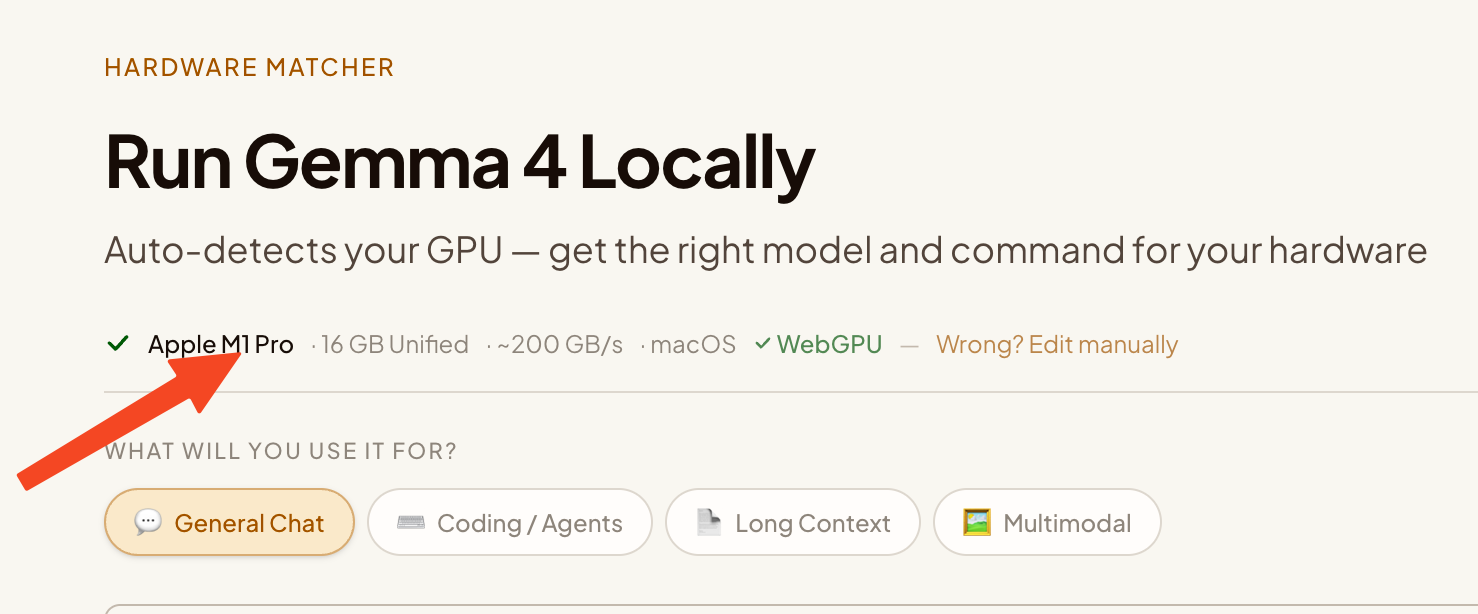
Instant GPU detection
Opens the page, your GPU and memory are identified automatically — no input needed.
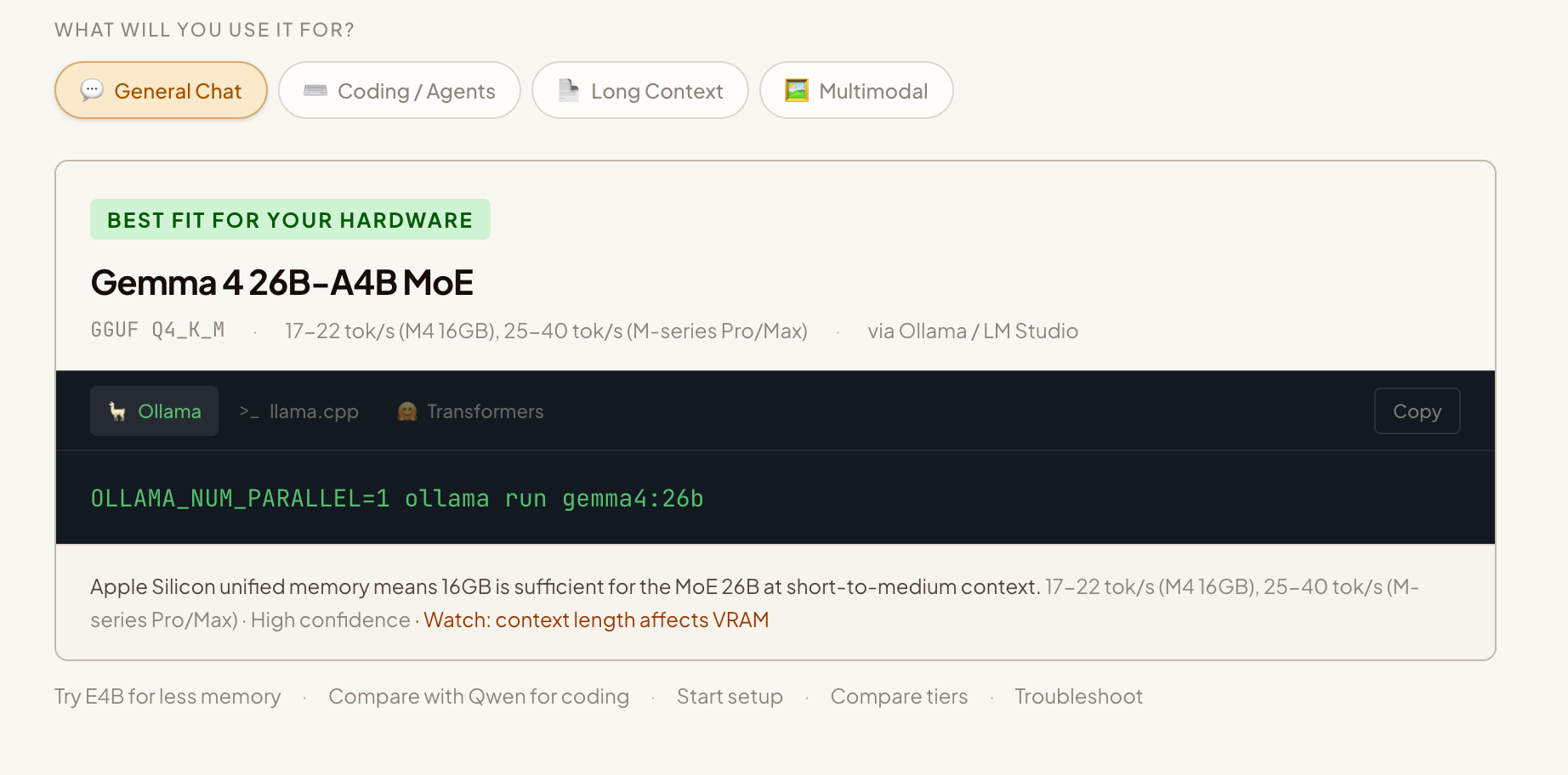
Personalized recommendation
Get the right model tier, expected speed, and a copy-paste terminal command.
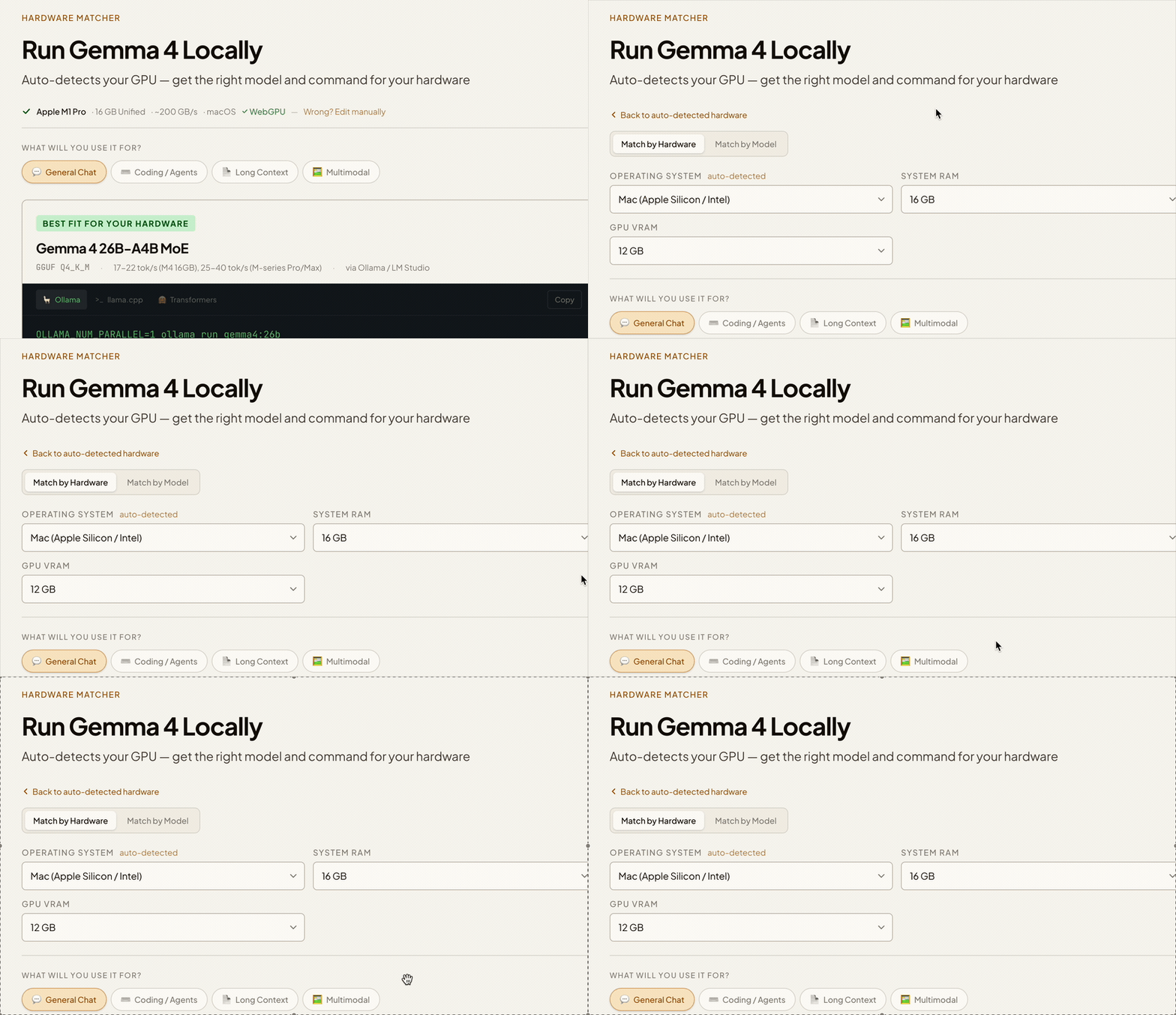
Full manual control
Switch to manual mode to set OS, RAM, VRAM by hand — or compare upgrade scenarios.
Setup Guides by Platform
Detailed guides with device-specific tips, model recommendations, and step-by-step instructions.
Mac (Apple Silicon)
Apple Silicon unified memory makes Macs ideal for local LLMs. 16 GB runs 26B MoE at 17–22 tok/s.
Read the Mac guide →iOS & Android
Run Gemma 4 Edge offline on iPhone & Android — no API key, no internet. Private AI in your pocket.
Read the mobile guide →Windows (NVIDIA / AMD)
Use Ollama or LM Studio on Windows. RTX 4070 Ti+ for 26B MoE, RTX 4090 for 31B Dense. AMD supported via Vulkan.
Use the matcher above ↑Frequently Asked Questions
What are the minimum PC requirements for Gemma 4? +
Can an RTX 4060 run Gemma 4? +
gemma4:e4b to get started.
Can an RTX 4090 run Gemma 4 31B? +
-np 1 with Ollama to limit parallelism.
Long contexts (10k+ tokens) may be tight — reduce with --ctx-size if needed.
Does Gemma 4 support EXL2 format? +
How to run Gemma 4 on LM Studio? +
What's the difference between Gemma 4 26B MoE and 31B Dense? +
Can I run Gemma 4 on my phone? +
How to fix OOM errors when running Gemma 4 locally? +
--ctx-size 4096 or lower.
2) Use a lower quantization — switch from Q4_K_M to Q3 or Q2.
3) Drop to a smaller model — use 26B MoE instead of 31B, or E4B instead of 26B.
4) Limit parallelism — use
OLLAMA_NUM_PARALLEL=1 with Ollama.
The KV cache for Gemma 4 is particularly large due to its 256K context window, so context length is the single biggest VRAM factor.
How does the automatic GPU detection work? +
Why does the tool detect my GPU but not my RAM? +
navigator.deviceMemory
API exists but is limited to Chromium browsers and caps at 8 GB —
not useful for local AI workloads. GPU model names, on the other hand, are
exposed through WebGPU and WebGL for rendering purposes, which is why we
can detect your GPU but still need you to select your RAM manually.